Last modified by: The Includables -
Creating an ROE: 1. Creating and Demographics
Service Canada calls the Record of Employment "the single most important document in the Employment Insurance (EI) program. This tutorial is the first of several that outline how to create and finalize an ROE. There will be a link at the end of this tutorial to the next tutorial.
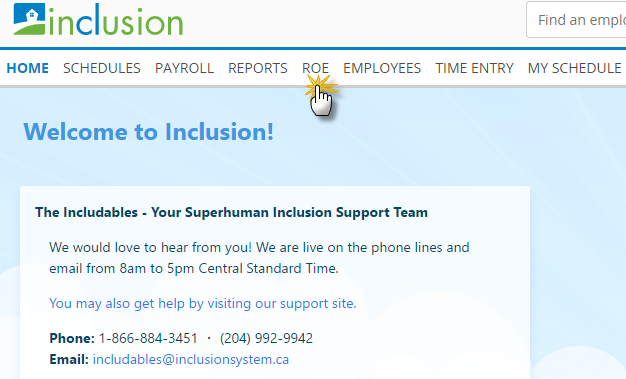
1. From the Home Page press the tab titled ROE.
2. From the drop down, select the employee who requires an ROE and click Add Record of Employment.

3. Next you will wait a few seconds before you are directed to a screen with the employee's demographic information. This is imported from the employee's profile. Verify that it is correct.
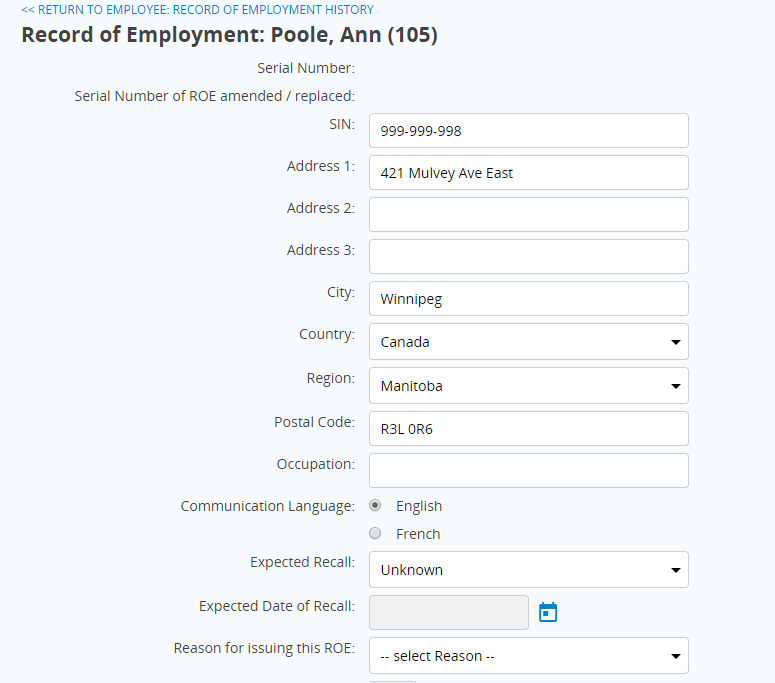
Note there is a field to list the employee's occupation.
Click here to proceed to Creating an ROE: 2. Reason and Issuer Info
