Last modified by: The Includables -
Adding a New Employee Using a Template
With Employee Templates you can set up defaults for payroll earnings, benefits and deductions, pay rates, classifications and Daily Approval pay classes so that new hires have the correct payroll setup.
For example a part time employee may have vacation paid out every pay period and a full time salaried employee may accrue vacation and also have health benefits.
Templates can also be linked to a Job and Hours Classification so that changing an employee's job or status will also change the applicable earnings, benefits and deductions.
______________________________________________________
Applying a Template to a New Employee
When you choose to set up an employee using a template, the options preset in the template will be applied.
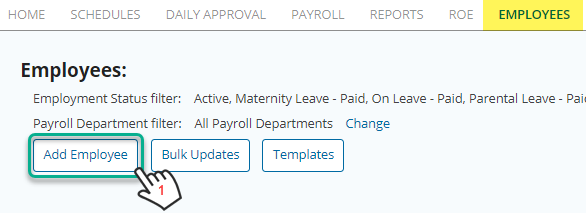
- Choose Add Employee from the Employees tab.
- Enter the demographic information for the employee and choose Next at the bottom of the page. (Additional details on completing the Demographics page can be found here.)
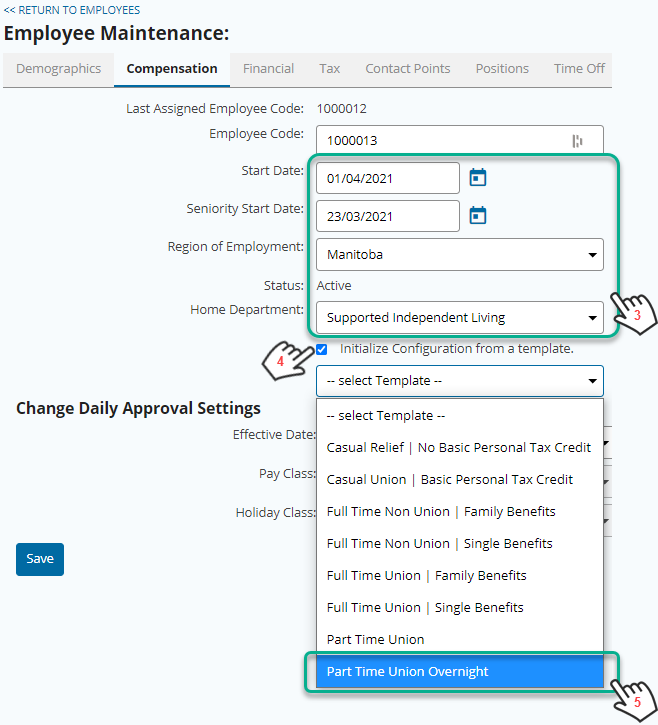
- Enter a start date, seniority date (if applicable), and home department.
- Choose the Initialize Configuration from a template checkbox.
- Choose the appropriate template for the job classification.
- Click Save
Important: Be sure to review the employee details after finishing to ensure proper setup, and configure additional employee settings as needed.