Last modified by: The Includables -
Shift Bidding
Contents:
1. Setting Organizational Preferences
2. Opening Available (Vacant) Shifts for Bidding
4. Assigning a Shift to an Employee
5. Assigning a group Shift to an Employee
Setting Organizational Preferences
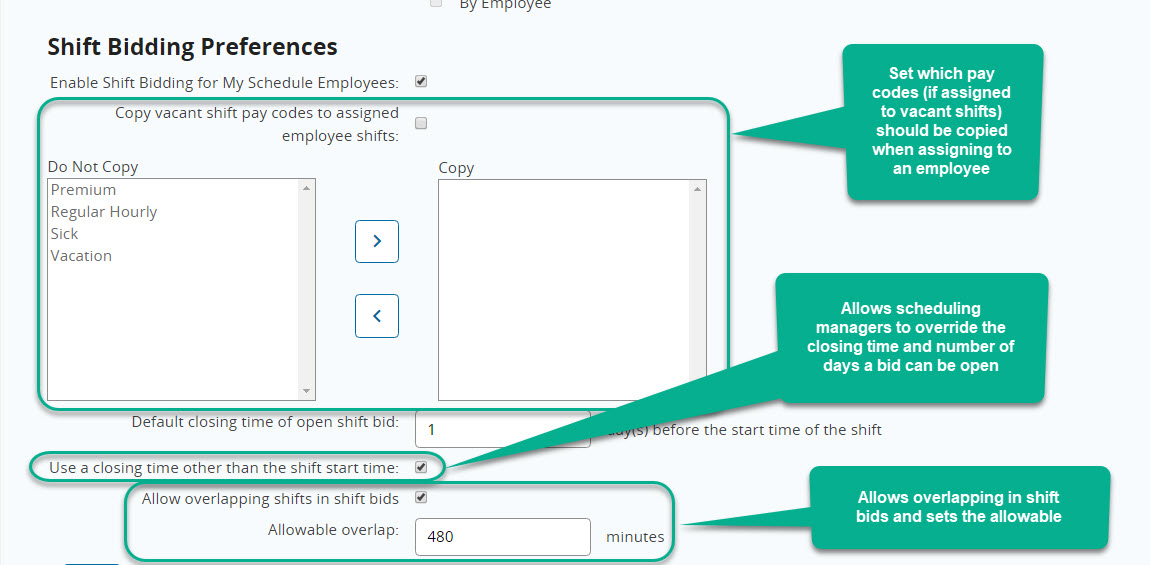
Shift Bidding Preferences are accessed from the Organization Details > Scheduling tab to set the following:
(Note that users must have the appropriate security role to access these settings)
- Enabling Shift Bidding for employees with My Schedule access that belong to a department that has Shift Bidding turned on (set on the Payroll Departments tab).
- Setting which paycodes should be copied with vacant shifts
- The number of days bids should remain open for employees to bid on prior to the start time of the shift
- Option to allow the closing time to be changed from the default when opening the shifts to bidding
____________________________________________________
Opening Available (Vacant) Shifts for Bidding
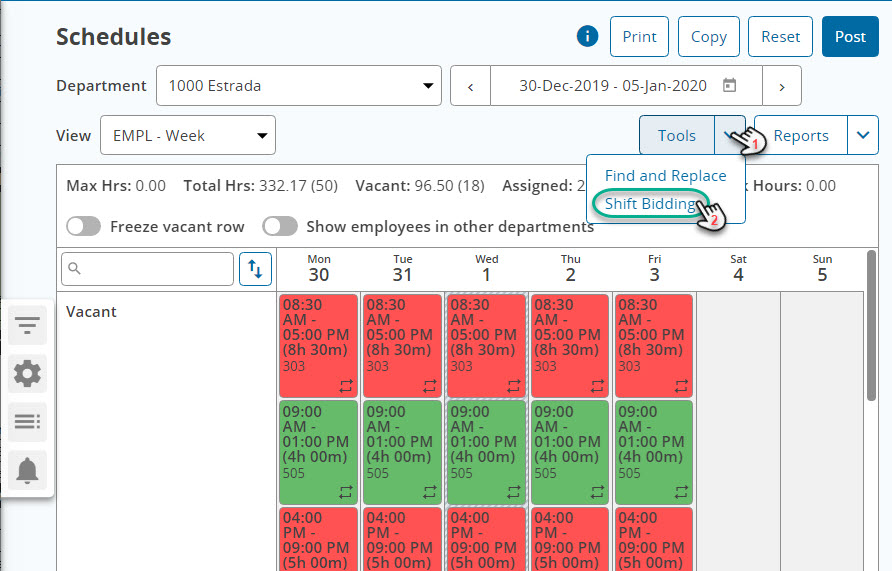
To open shifts to employees to be bid on, from within any schedule click on Tools and then on Shift Bidding.
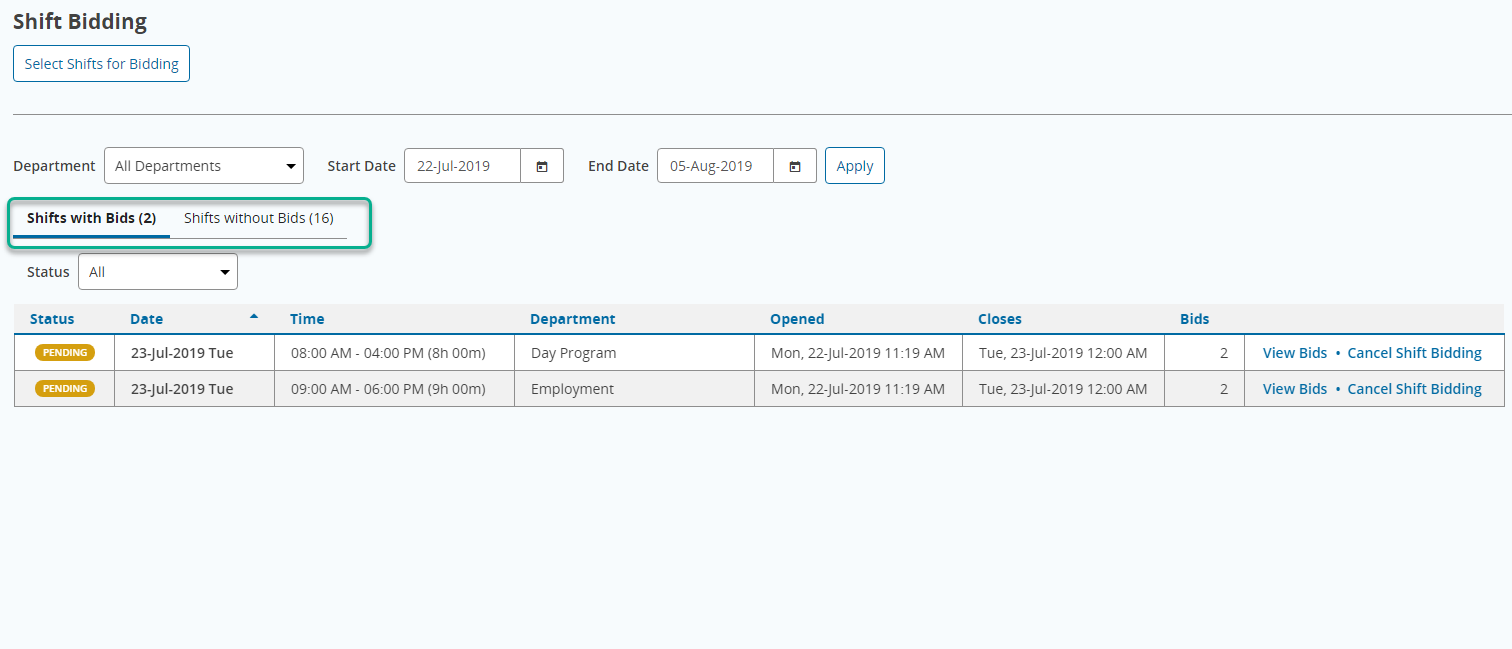
From the Shift Bidding screen you can see the shifts that already have bids from employees and those without bids on separate tabs for the departments and date range selected.
To open more shifts:
- Click on Select Shifts for Bidding
- Select individual shifts or use Select All to choose all shifts in the view
- Select Open Shifts
- Set the closing time for accepting bids (optional)
- Click Open Shift
Shifts just opened will be listed on the Shifts without Bids tab
____________________________________________________
Creating a group of shifts
To create a group:
1. Select all of the shifts you want in the group,
2. select the option to Group # Shifts.
* Groups can only be created for shifts that are all in the same department.
** When creating a group the Group Name defaults to the number of shifts and the date range. This name can be changed to a name of your choice.


____________________________________________________
Assigning a Shift to an Employee
As a manager, you will receive email notifications as employees bid on vacant shifts you've made available.
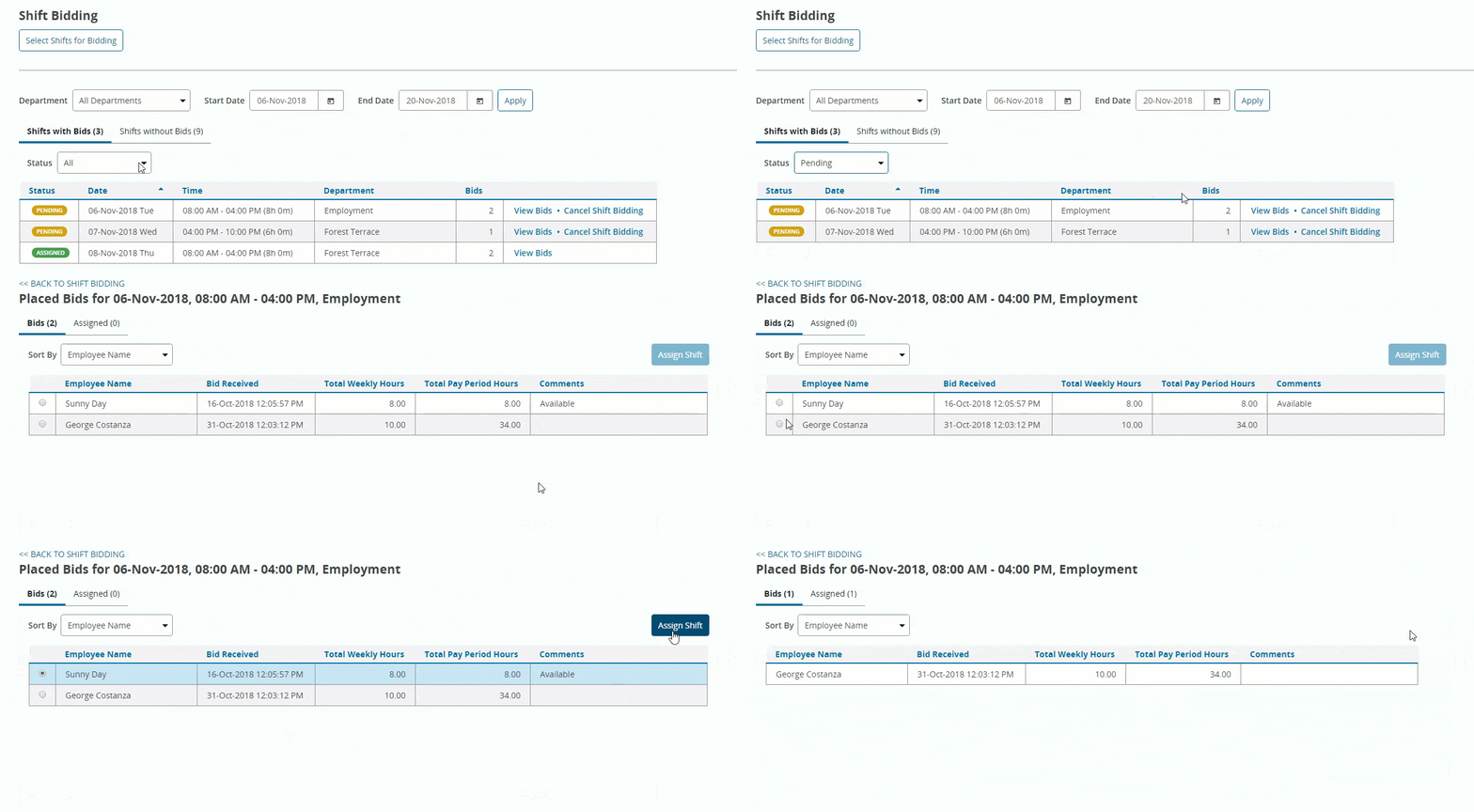
To assign a shift to an employee:
- Select View Bids from one of the pending shifts (you can use the Status filter to view only pending shifts)
- Select the employee to assign the shift to
- Click Assign Shift
- The employee chosen will move to the Assigned tab
____________________________________________________
Assigning a group shift to and Employee
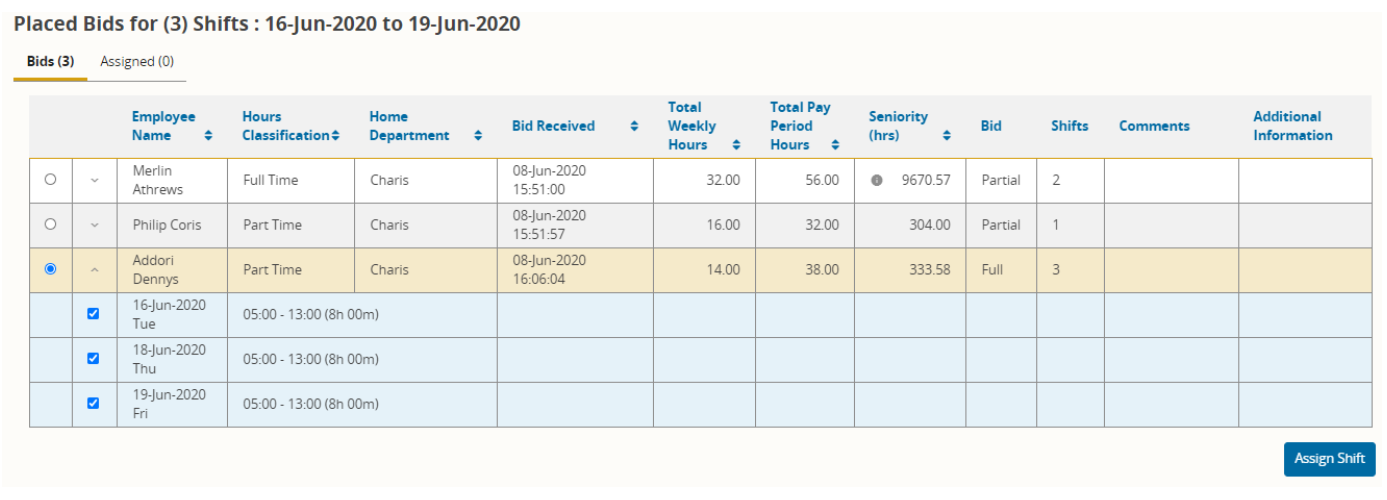
To see who has bid on the groups and to assign them, select the View Bids option for the group. This view will list the employees that have bid along with their classification, home department, time bid was received, total hours, pay period hours, seniority hours and if they bid on the full group or only part of the group.
- Select the small ^ symbol right beside the employee name to expand the list and see the details of the shifts the employee bid on.
- To assign the shift:
- select the radio button by the employee to identify the employee you are assigning the shifts to,
- select the individual shifts that should be assigned.
- when you're happy with the selection, click on the Assign Bid button.