Last modified by: The Includables -
How do I edit or delete a Schedule?
Contents:
How do I edit an employee shift in scheduling?
How do I delete an employee shift?
How do I edit an employee shift in scheduling?
To edit an existing shift in a schedule simply double-click the shift you wish to edit:
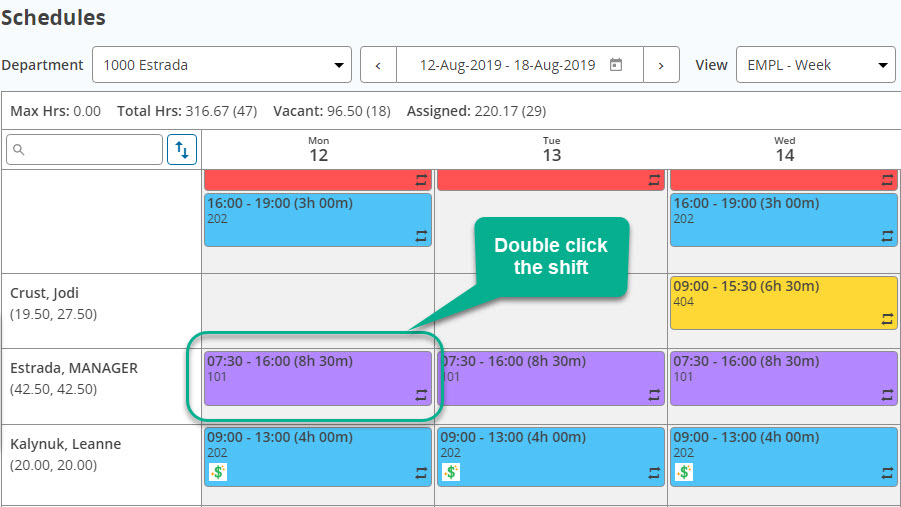
The Shift editor window will then appear. From here you can edit details about the shift like start and end time, position, who will be working it etc. Note that if you are unsure who is working a particular shift you can always leave it as *vacant.
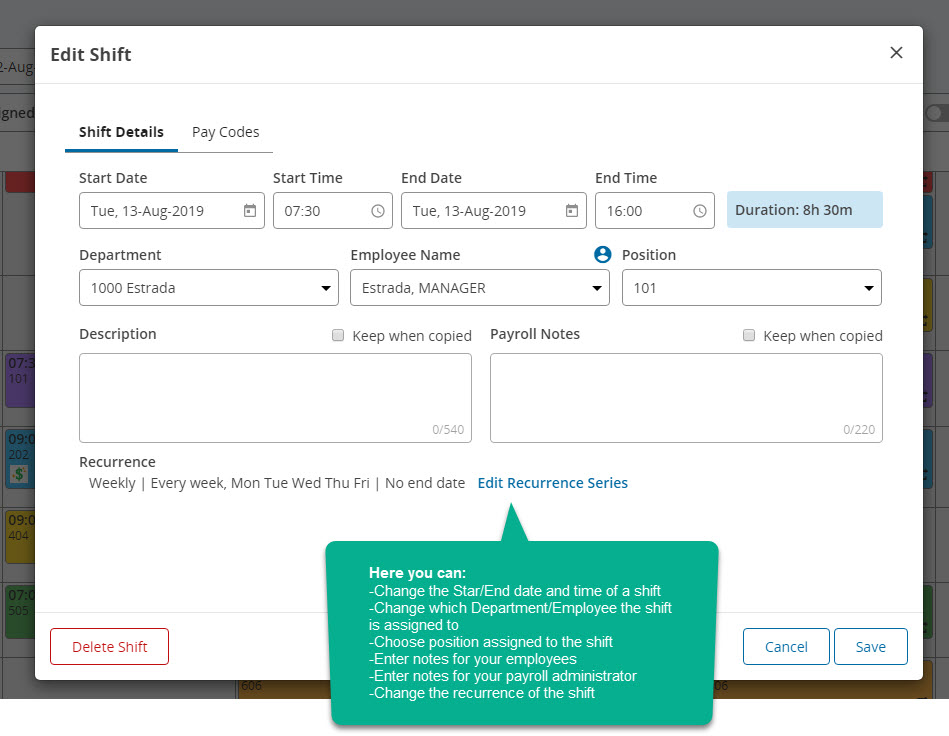
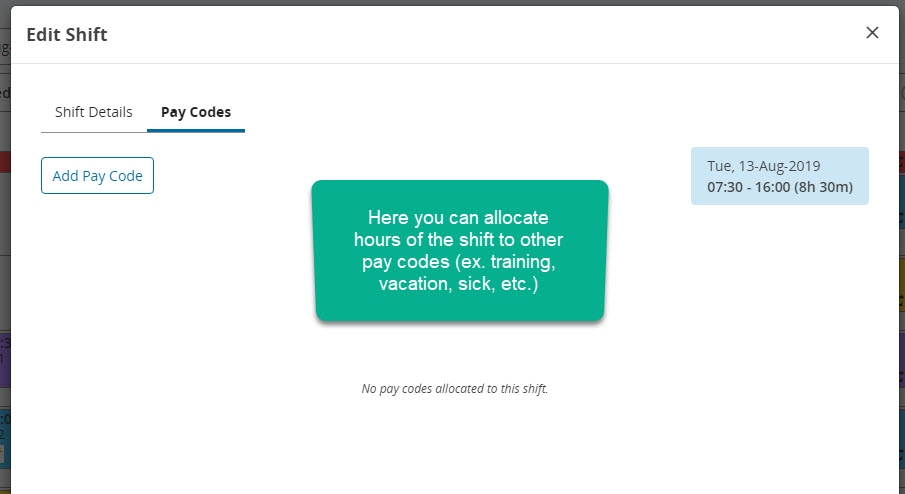
There are two different tabs in this window: "Shift Details" and "Pay Codes".
This is how the "Shift Details" window looks like and what you can do:
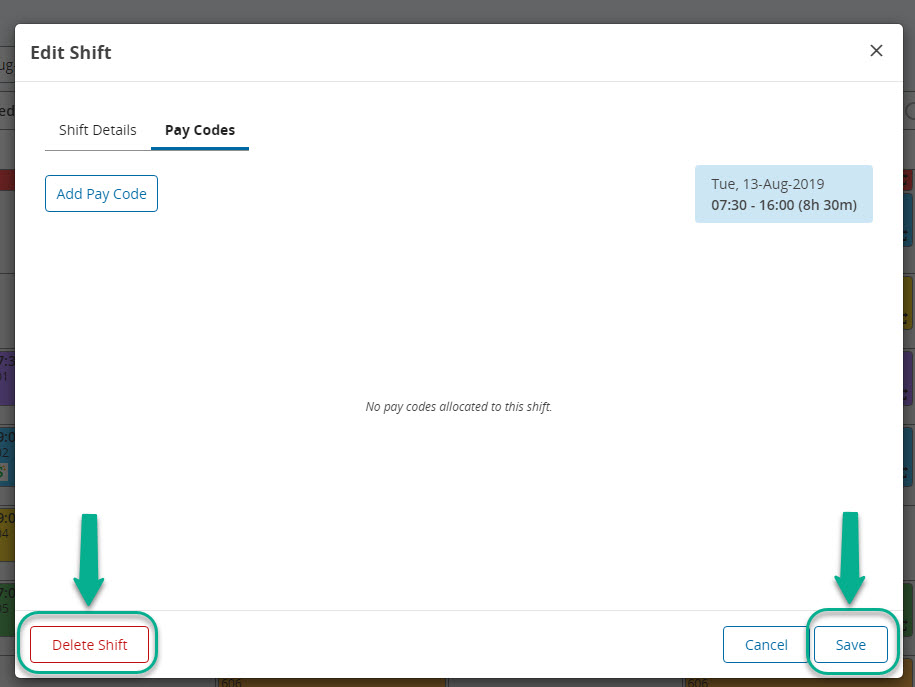
This is how the "Pay Codes" window looks like and what you can do:
When you are done editing the shift details you can finalize the changes by clicking the Save button. There is also a Delete Shift button that you can click to delete the shift.
Vacant shifts will not flow through to payroll and are there for you to help keep track of shifts you need to fill.
How do I delete an employee shift?
There are two ways you can delete an employee shift:
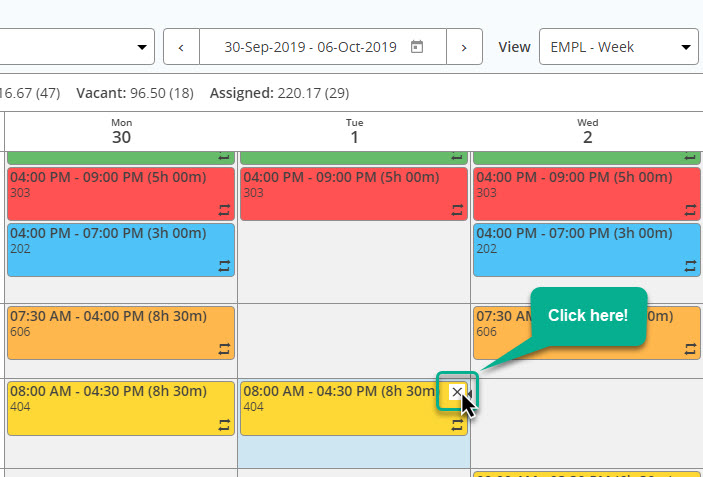
First one: Click on the small "x" that shows up in the top right corner of the employee shift:
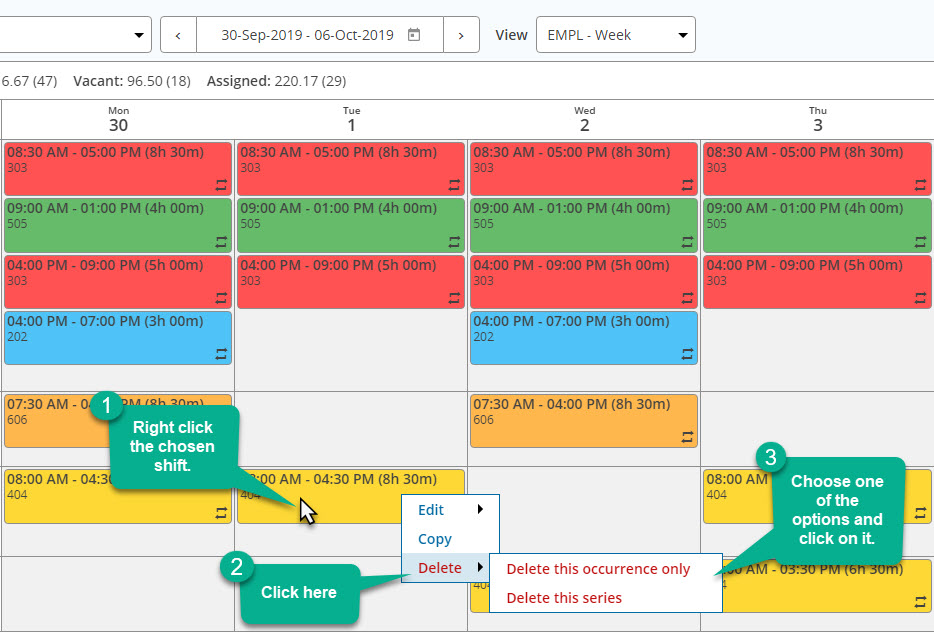
Second: Right-click the shift you wish to delete. A small menu will appear. Click the option that says delete. A second small menu will appear. Choose one of the option and click on it.
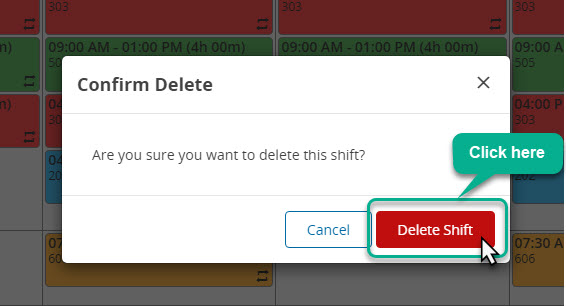
Another window will appear. Click on Delete button to delete the shift.
How do I delete a Schedule?
-
First find the schedule you wish to delete. From the homepage (or any page) click on the tab titled "Schedules":

-
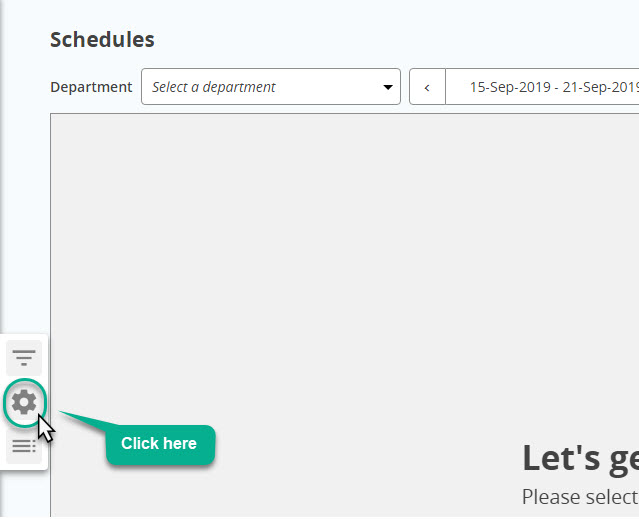
On the next screen that appears look on the left side and you will see a small gear icon. Click that icon:
-
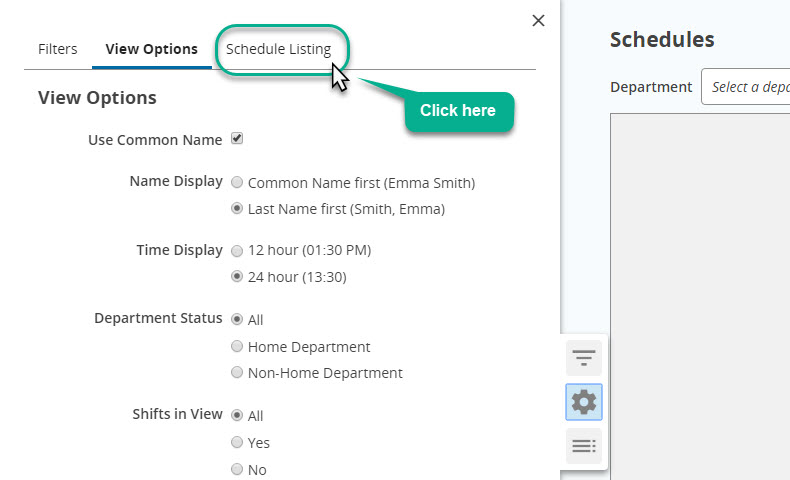
On the next screen that appears, still on the left side, you will see a tab named "Schedule Listing". Click on that name.
-
A list of your schedules will appear. Find the schedule you wish to delete on the Schedule Listing. On the right of the row, you should see a link titled Delete Schedule. Click on that link.
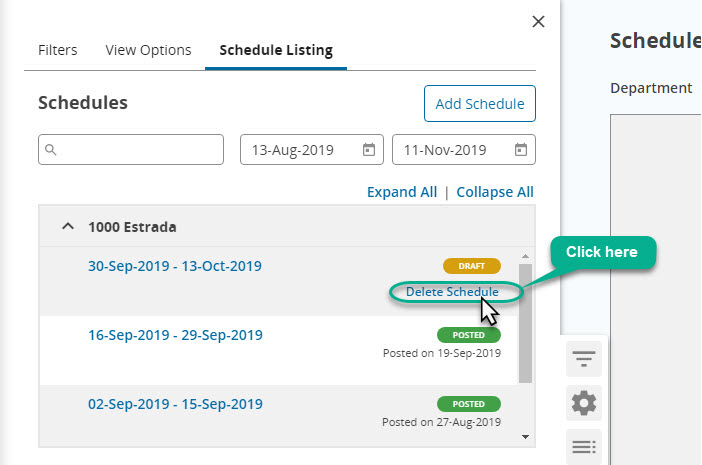
*Note that you cannot delete Posted schedules.
-
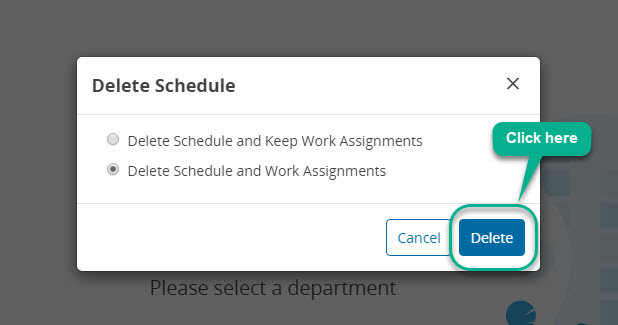
A window will appear with two options: Delete Schedule and Keep Work Assignments and Delete Schedule and Work Assignments.
Delete Schedule and Keep Work Assignments - This will delete the schedule framework but the shifts you have scheduled within that framework will still exist.
Delete Schedule and Work Assignments - This will delete both the schedule framework and the shifts therein.
Click Delete once you have selected an option.