Last modified by: The Includables -
How can I filter and sort through a schedule?
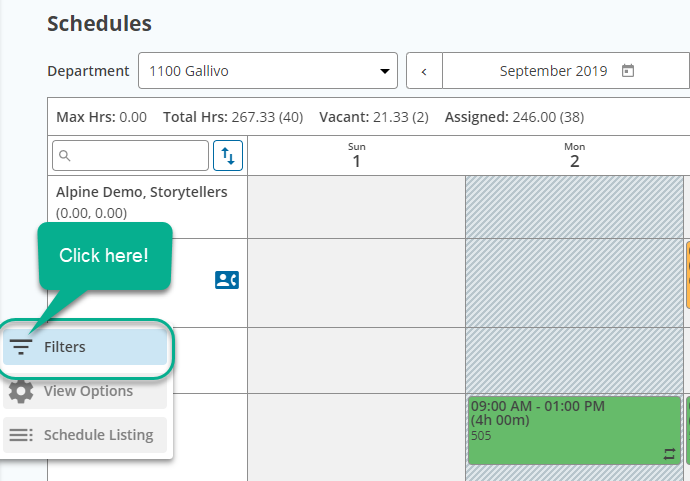
1) Inside Schedules, open the filters panel by clicking on the filters icon:
2) A list of different types of filters will appear. Click on the title of the filter you want to set, for example, "Hours Classification":

3) A new option list will appear. Select the desired option inside the box titled "Available" :

4) Your chosen option will automatically be moved to the box named "Selected". It means that your filter was selected and applied to your schedule.

NOTE: To clear filters and return to show all employees, click on "Clear All Filters" button on the top right corner of the menu:

