Last modified by: The Includables -
How do I schedule an employee shift?
To schedule an employee for a shift:
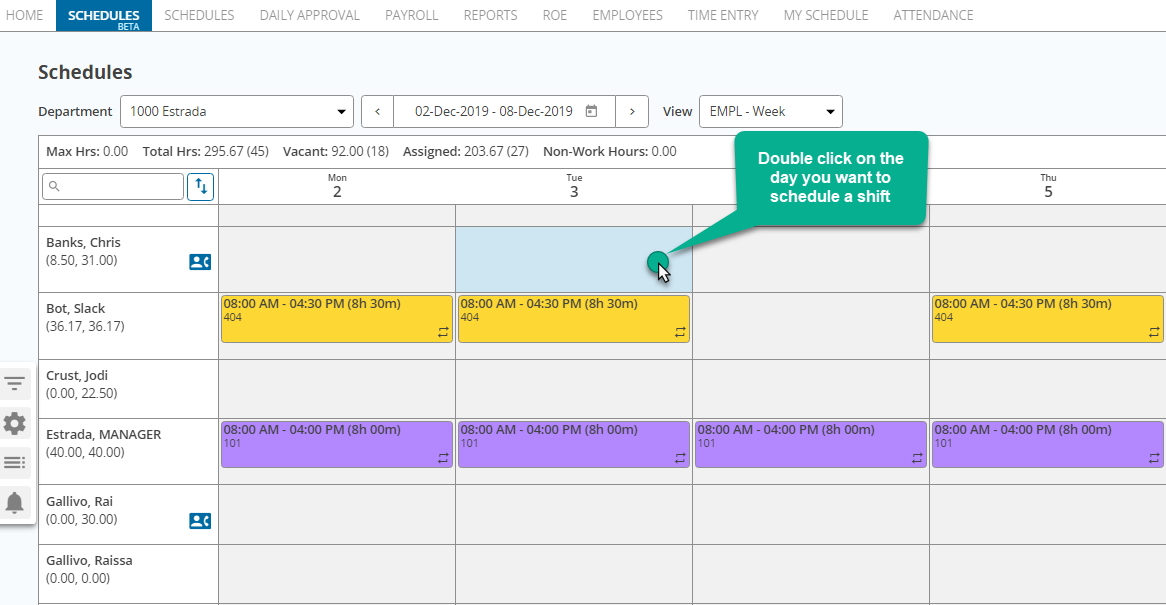
1. Double click on the day you want a shift in the row for the employee:
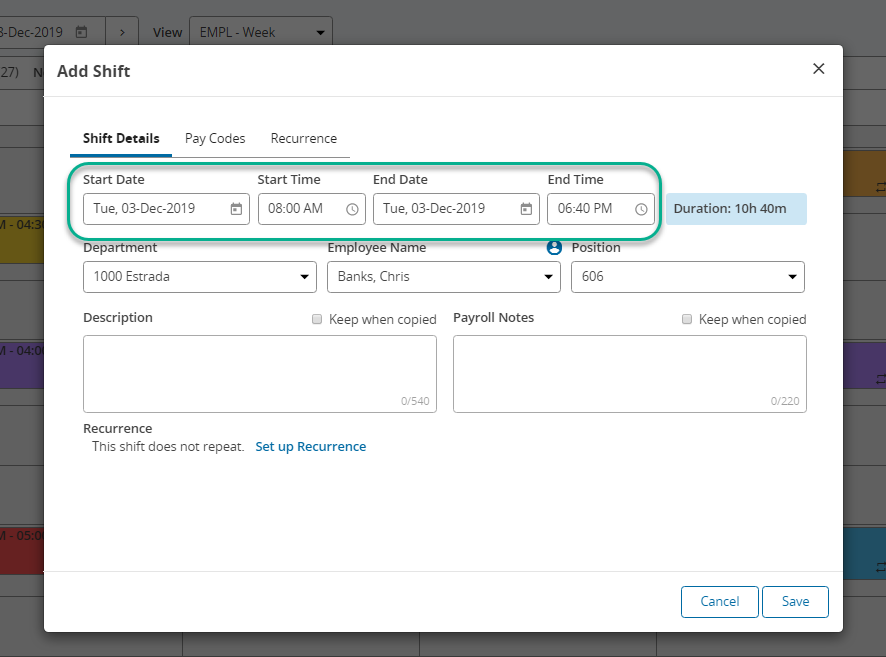
2. A new window will be opened. In the Shift Details tab, set the shift start and end time. (To schedule a shift that goes over midnight choose the End time date to be the following day):
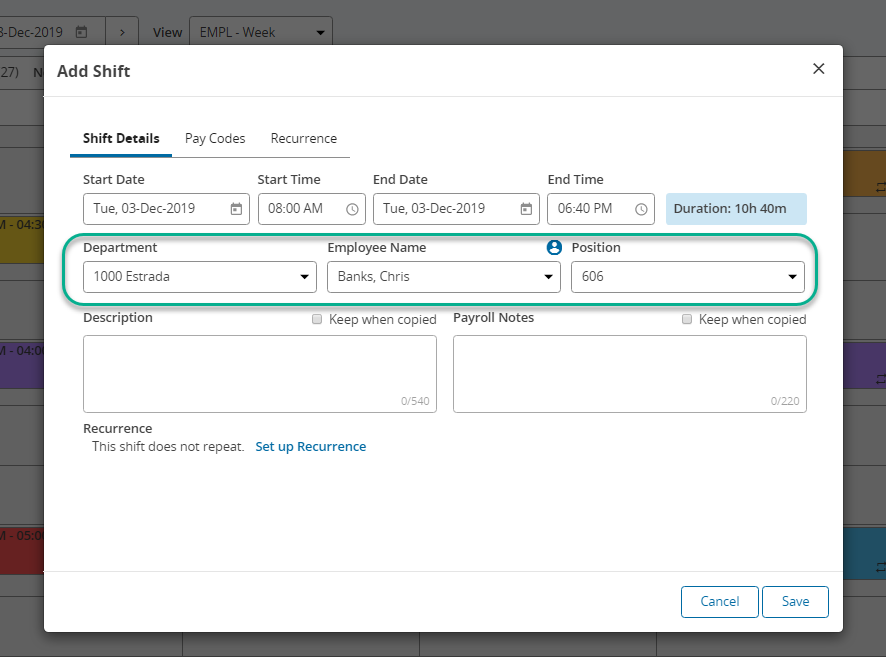
3. Set employee's details such as name, department, and position. Note you can set the employee as Vacant to keep track of shifts you need to fill. They will not flow through to payroll until an employee is then assigned to it:
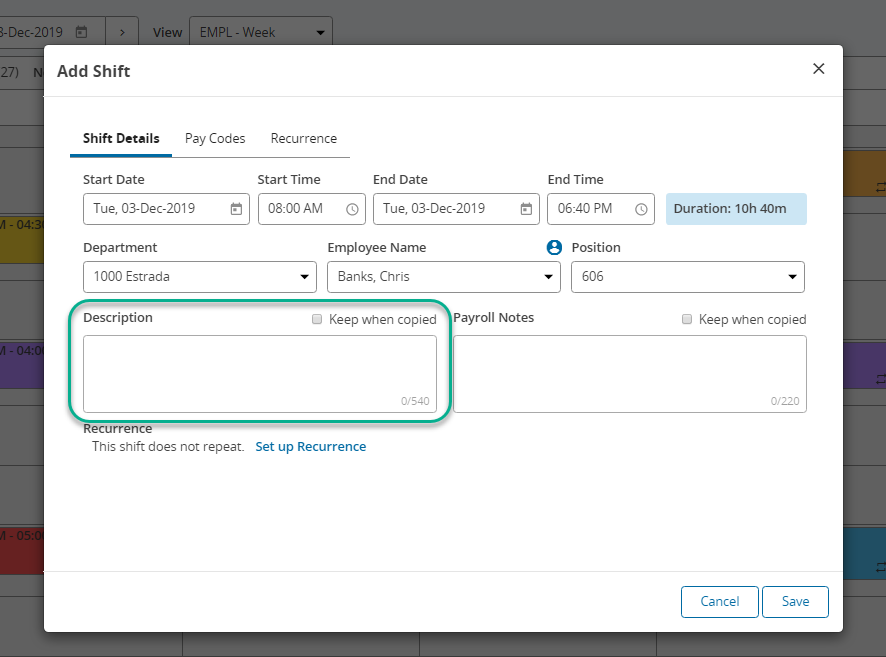
4. Add a description for the shift if there is a specific task or activity needed:
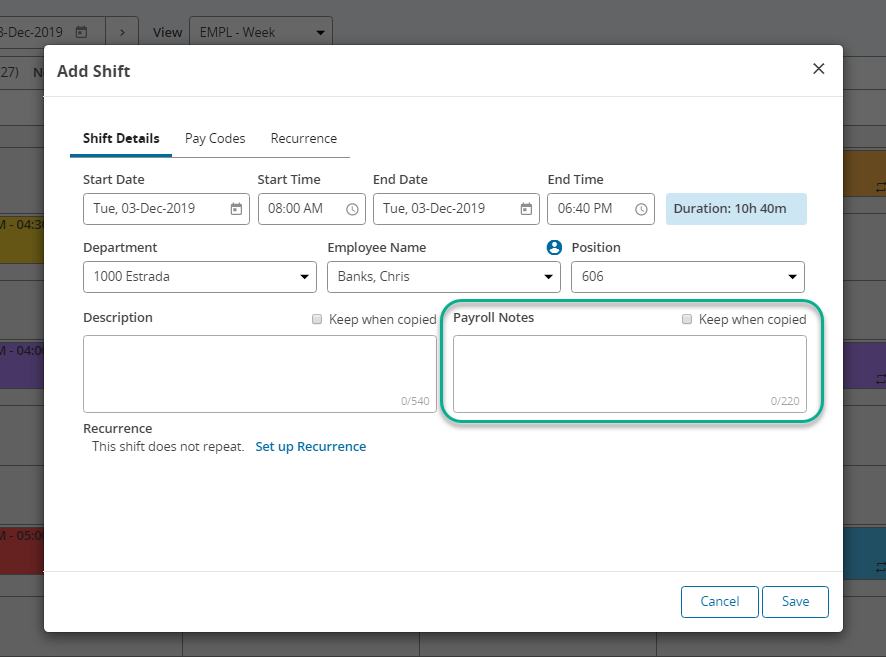
5. Add a payroll note if there is something specific that payroll needs to consider about this shift (note this is not visible to the employee):
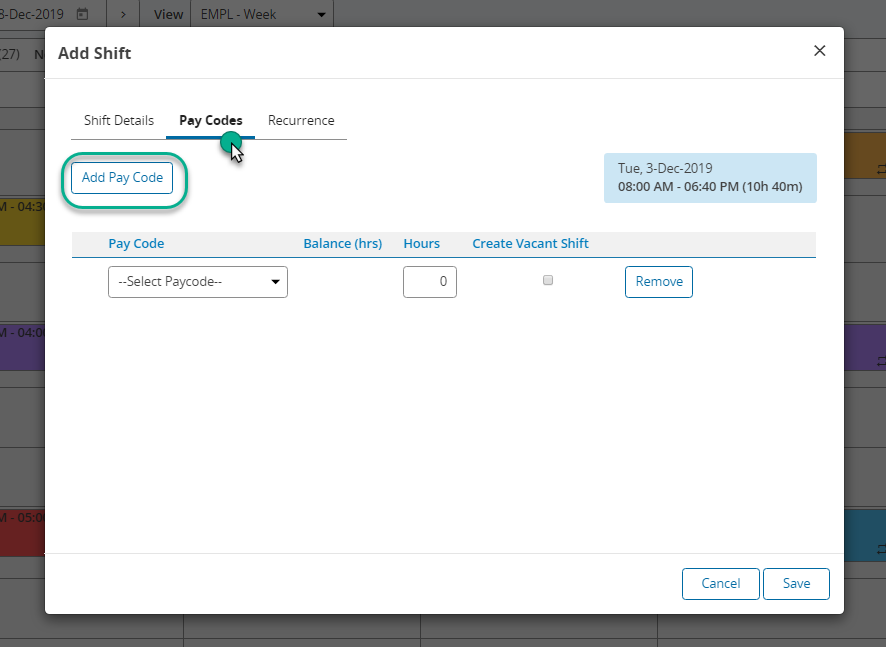
6. Click on the Pay Code tab and then click on the Add Pay code button to add a pay code type to change how the shift will be paid. See How to allocate a pay code.
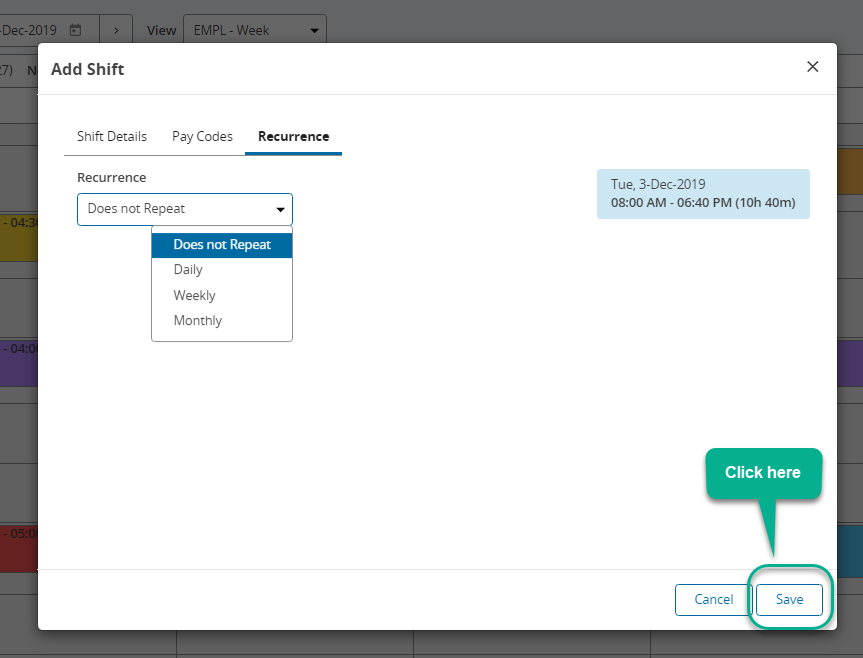
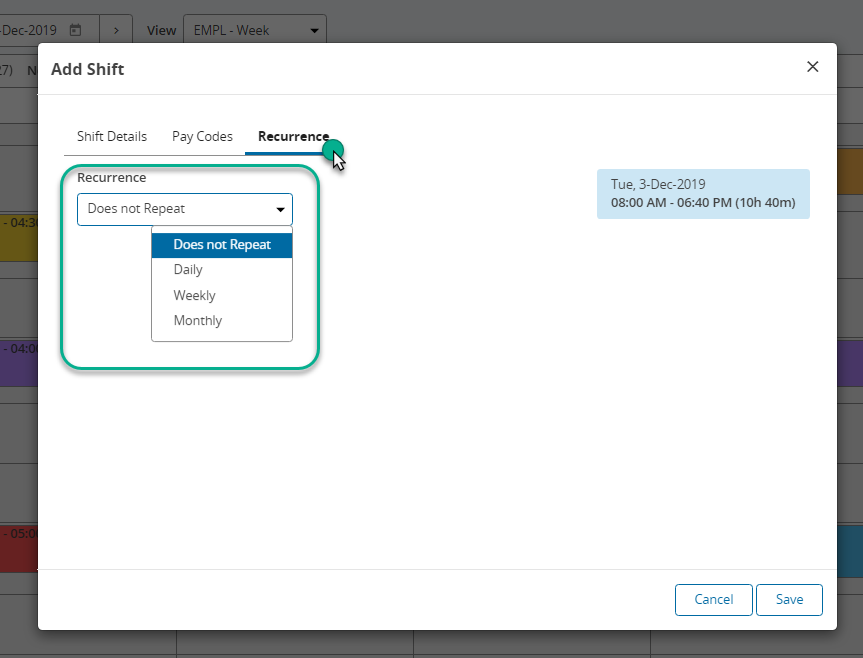
7. Switch to Recurrence tab and then select the recurrence if applicable:
8. Choose Save when complete