Last modified by: The Includables -
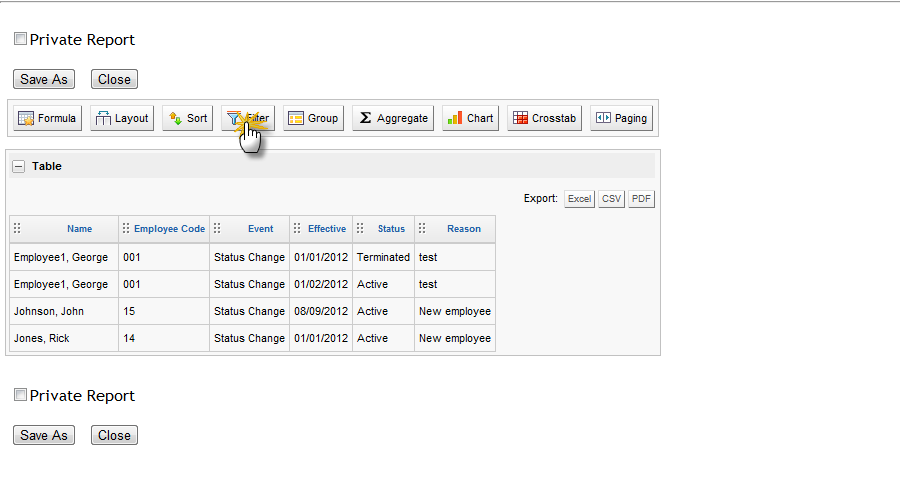
Filter
-
Filtering helps you remove the rows that you do not need.
-
To create a new Filter, complete the following fields:
-
Filter Column: Select the column you want to filter from the drop down.
-
Comparison: Select one of the operators
-
Value: Enter the value
-
Note that the value entered must exactly match (both spelling and format) the criteria you are looking for - with exception to the use of the Starts with and Contains comparisons.
-
-
Click Add.
-
The filter values will now be listed below the Add button.
-
-
To delete, click Remove to the right of the added filter.
-
To replace an existing filter, enter the new Filter Column, Comparison and Value but do not click Add. Instead click the Replace button by the filter you wish to get swap out.
-
Multiple Filters: When using multiple filters, note the following additional actions that can be done:
-
Use the up and down orange arrows to the right of the added filters to manage the sequence. Filters that are higher in the listing will be considered first.
-
Between added filters, you can click the word And to change it to Or, and vice versa. This will change the relationship between the two filters.
-
Using And between filters will return data that fulfills both criteria.
-
Using Or between filters will return data that fulfills at least one of the criteria entered.
-
-
