Last modified by: The Includables -
Saving & Visibility
-
Saving a new report:
-
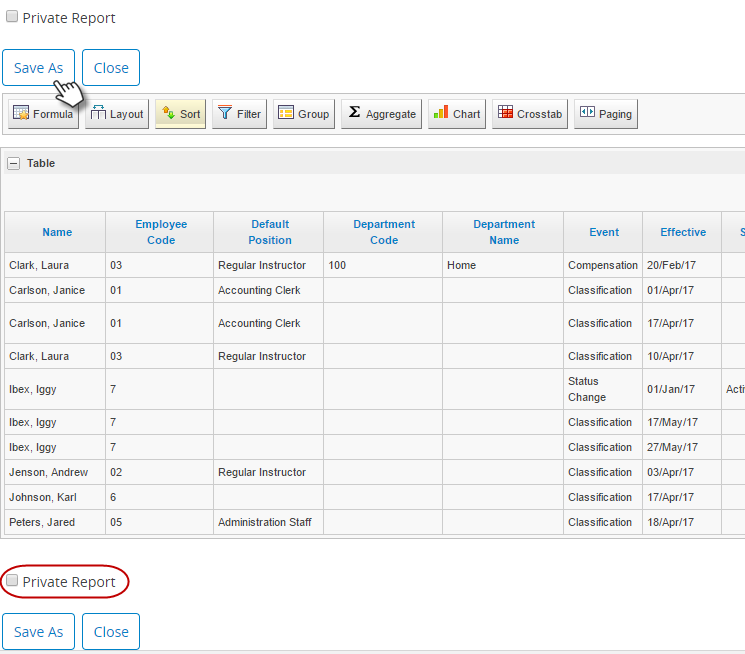
To save your customized report, scroll down to the bottom of the page and click Save As.
-
Enter the name of your report in the pop up by Custom Report Name.
-
Click Add a Bookmark.
-
Your report is now saved. Next time you go under the Reports tab of the main menu,your report will appear in the listing.
-
Re-saving an existing report when adjustments have been made:
-
To save your adjusted report under a new name, follow the steps used above.
-
To override the existing report, scroll down to the bottom of the page to find that there is now a Save button. Click this.
-
Your report is now saved. Next time you go under the Reports tab of the main menu, your report with the new settings will appear in the listing.
-
-
Saving a private report :
-
To make a report you have created private - meaning only your user id can view it - check the Private Report box before clicking Save As/Save.
-
When this report appears in your report listing, it will be shaded in grey indicating its private state.
-
