Last modified by: The Includables -
Mobile Schedules
Mobile Schedules is accessed by logging into the Inclusion System via your mobile device browser and selecting Schedules Beta.
Contents:
How do I edit an existing shift?
How to access employee contact points
How do I add a new shift?
1. Click on the "+" button located in Schedules:
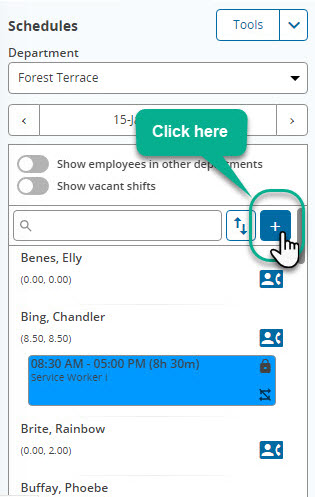
2. A new window will open containing 2 tabs - Shift Details and Pay Codes:
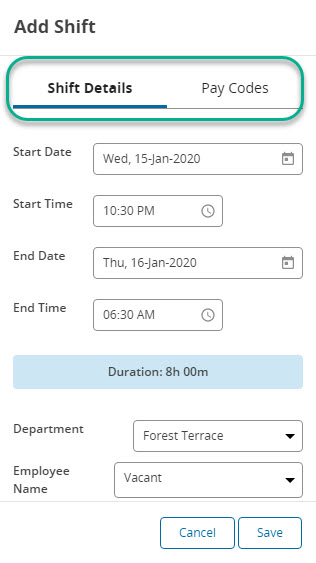
3. Shift Details tab allows you to set the following:
- start date and time of the shift
- end date and time of shift
- department
- employee
- position
- description (including option to keep when copied)
- payroll notes (including option to keep when copied)
Recurrence details will show below the notes. The text "This shift does not repeat" should appear, as currently there is no ability to add recurring shifts in mobile Schedules. Recurring shifts can be added via Schedules Desktop.
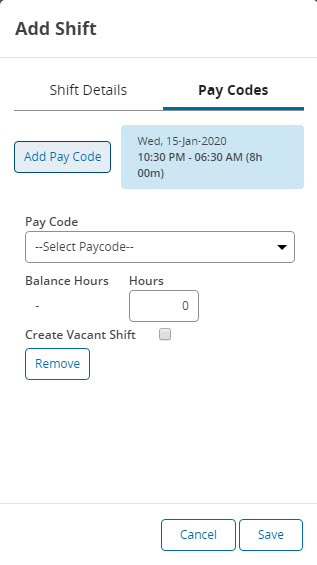
4. The Pay Codes tab allows you to add pay codes. When adding a new shift, the pay codes list contains all pay codes that can be used in Schedules. You can choose to create a duplicate vacant shift if needed.
Note that you won't automatically see the duplicate vacant shift unless you have enabled the Show Vacant Shifts toggle.
Note: Notifications for added shifts in mobile Schedules will not be automatically sent if created in a Posted schedule. To send notifications, users must login to Schedules desktop and click the Send Notifications button inside the schedule.
_____________________________________________________________
How do I edit an existing shift?
To edit an existing shift in a schedule simply double-tap the shift you wish to edit and a shift edit window will appear.
Recurrence details will show below the notes. However, there is currently no ability to edit the recurrence settings in mobile Schedules. Recurrence settings can be edited via Schedules desktop.
Note: Notifications for edited shifts in mobile Schedules will not be automatically sent. To send notifications, users must login to Schedules desktop and click the Send Notifications button inside the schedule.
_____________________________________________________________
How to sort the view
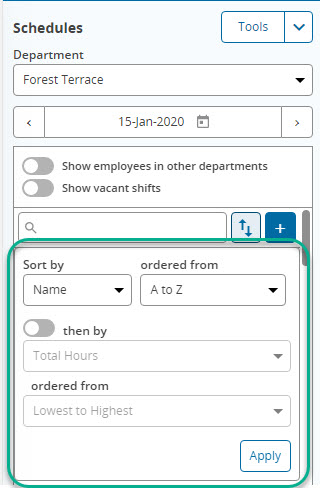
1. Click on the sort button:
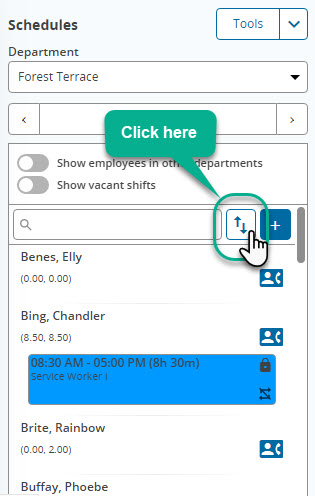
2. A simplified list of sort options will appear. Choose the ones you prefer and then click Apply:
_____________________________________________________________
How to access employee contact points
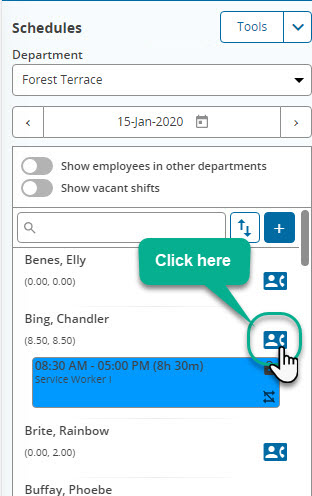
To access employee contact information simply click on the contact icon located beside the employee's name.
Selecting this will display the phone numbers entered for the employee, with the primary contact point appearing first in the list.
Selecting a phone number from this screen will trigger the option to phone the employee when if you are on a mobile phone:
_____________________________________________________________
Please note that additional schedules functionality - such as more filter options, adding new schedules - are available only on Schedules desktop.
