Last modified by: Peregrin Maksimovich -
Managing Schedule Rotations
Schedule Rotations allow you to name group shifts by a category that meets the needs of your specific program or department, view and filter them, and assign them to employees using Find and Replace. It can be used for permanent rotations for your program such as full time staff or even temporary ones such as a summer program.
Contents
Schedule View with Rotations
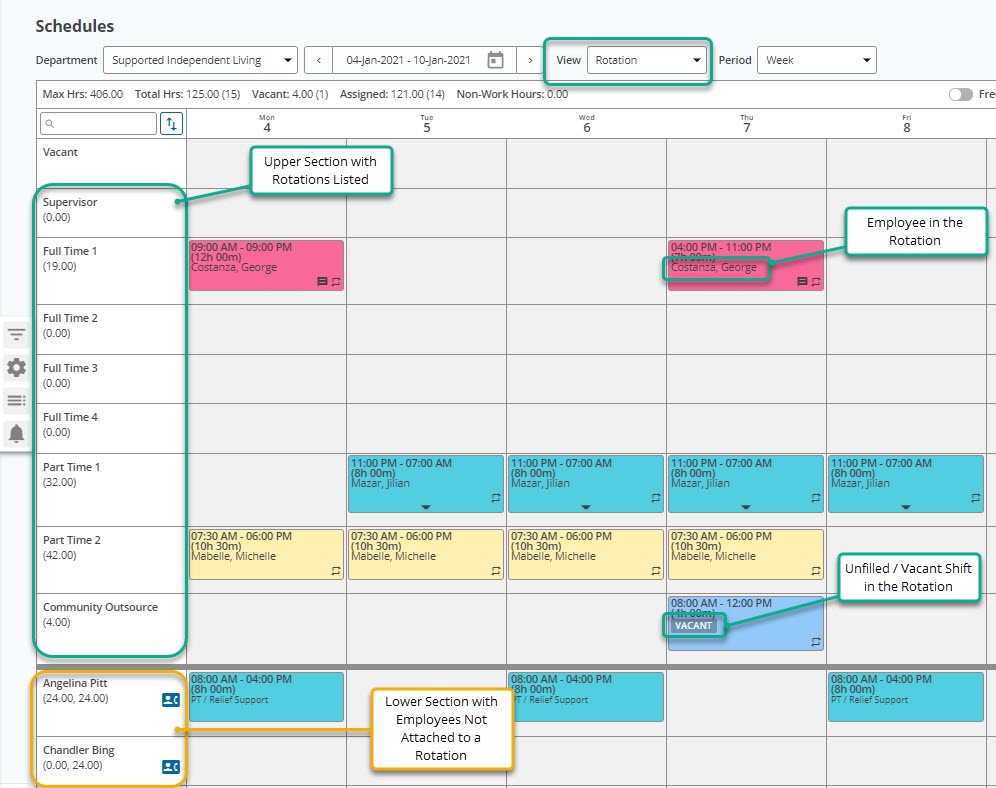
Once configured, the view option and filters will have Rotation as a choice. The basic layout of the Rotation view splits the screen into shifts that are part of rotation, including vacation shifts, and those that are not as shown below.
Rotation Setup
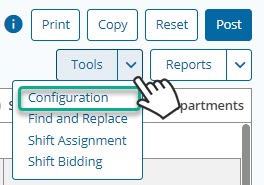
To set up rotations, choose Tools > Configuration at the upper right hand corner of the scheduling screen
Adding Rotations
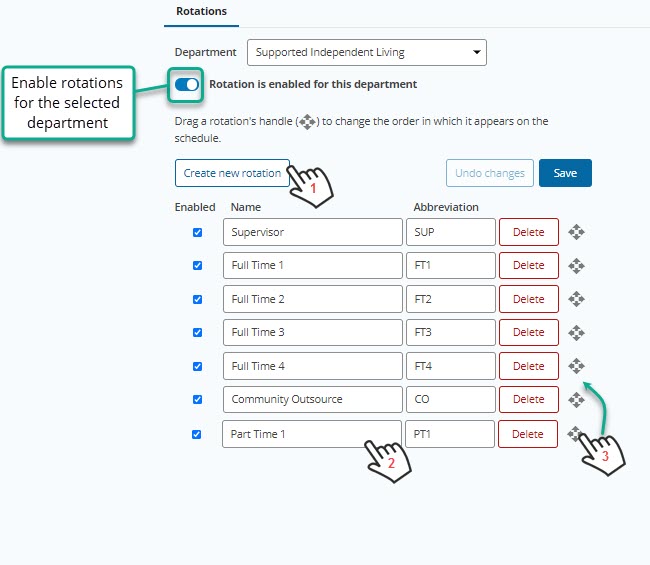
To add rotations, enable the function for the department.
- Choose Create new rotation
- Enter the name and abbreviation
- If desired, drag the rotation label up to adjust the sort order. This controls the display in the schedule view.
You can disable individual rotations or the feature in the future if the rotation labels are no longer necessary, or the specific rotation no longer applies.