Last modified by: Peregrin Maksimovich -
Creating and Managing Employee Templates
Templates are used to maintain standards within your organization ensuring the correct profiles are applied to your staff. As always, contact the Includables if support is needed setting up this feature.
Contents
Accessing Templates and Basic Considerations
Setting a Default Template for a Classification
Editing or Deleting a Template
Accessing Templates and Basic Considerations
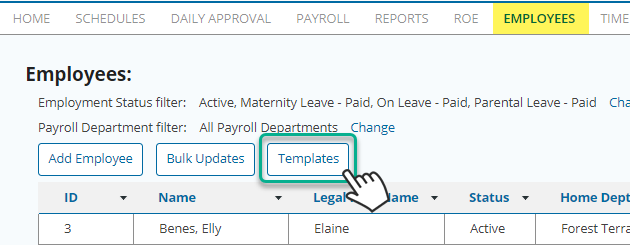
Employee templates can be added or modified by accessing the Templates section from the main Employee page.
When creating a template, consider the types of changes needed from one type of employee group to another and the different cases within each group, for example salaried vs hourly, benefit levels, vacation that is accrued vs paid each pay period. For example your list might looking something like list below.
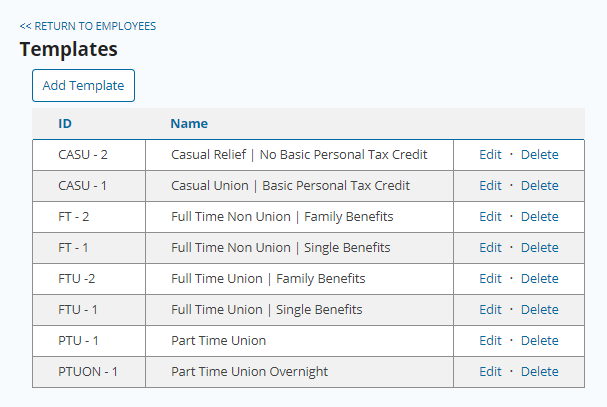
Adding a Template
To create a new template configuration choose Add Template from the template list screen and complete the five sections detailed below. Note that only the payroll instruction section will be applied when changing the classification of an existing employee, whereas all sections will be applied to new hires.
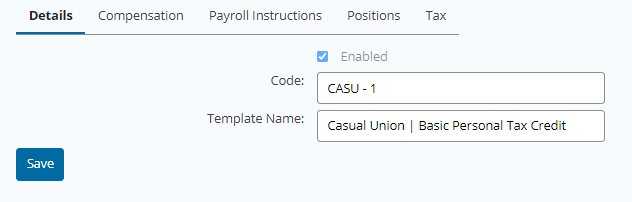
Details
Name and abbreviation code for the template. Note the name should be descriptive so the application is clear.
Compensation
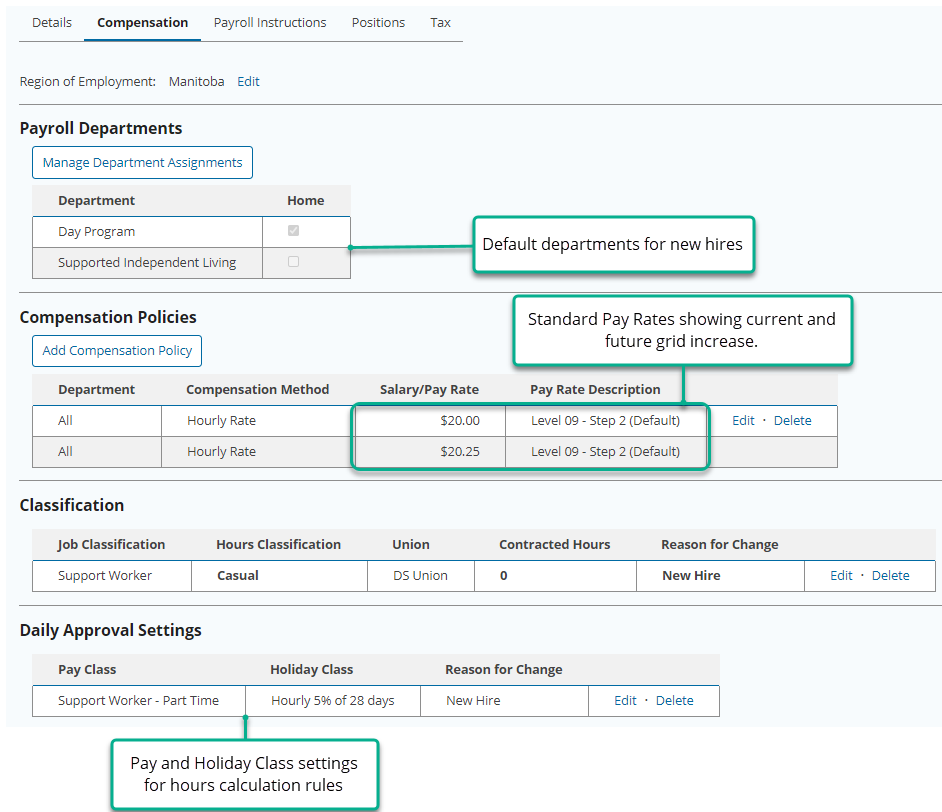
The compensation tab can include some or all of the section listed to be applied to the employee.
- Department assignments - applied only to new employee hires to a maximum of 25 departments.
- Compensation rates - custom or standard rates can be set and in the case of standard rates the effective date will be determined based on the employee start date, with one rate type allowed per department combination.
- Classification for new hire.
- Daily Approval pay and holiday class for hours calculation rules.
Payroll Instructions
Review and select Edit next to any of the payroll instructions that should be excluded or set with a specific default value.
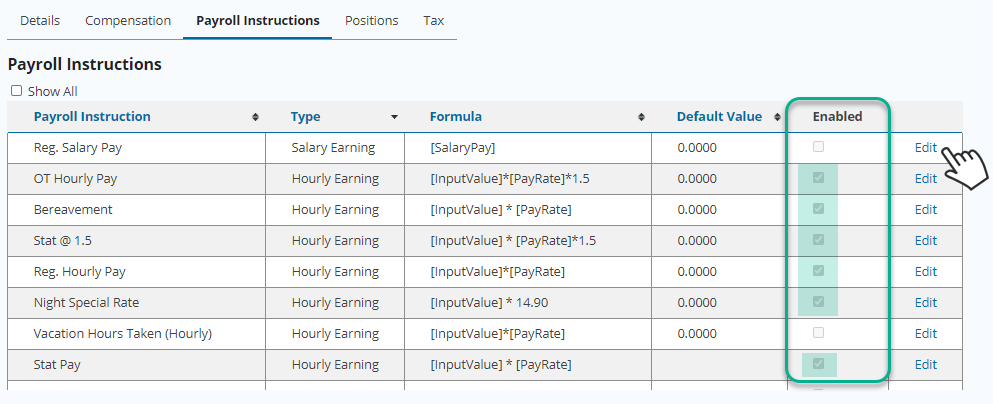
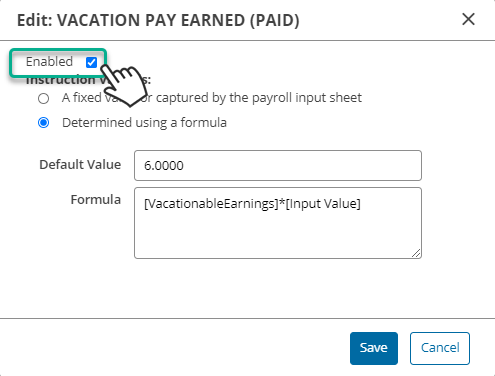
To enable or disable a payroll instruction choose set the enabled checkbox, and edit the default value and/or formula if necessary.
Positions
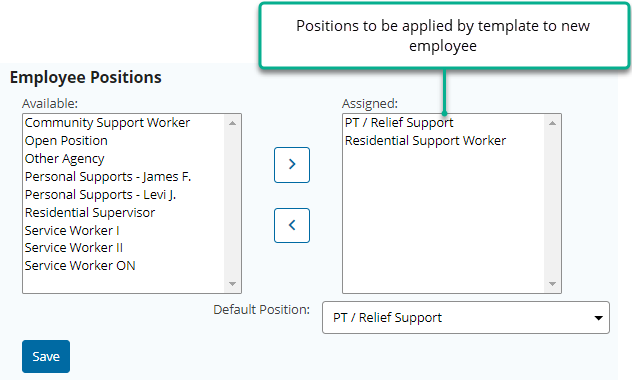
Preselect one or more positions that the employee may be scheduled for. Note this can be left empty and the positions can be assigned later directly in the employee profile.
Tax
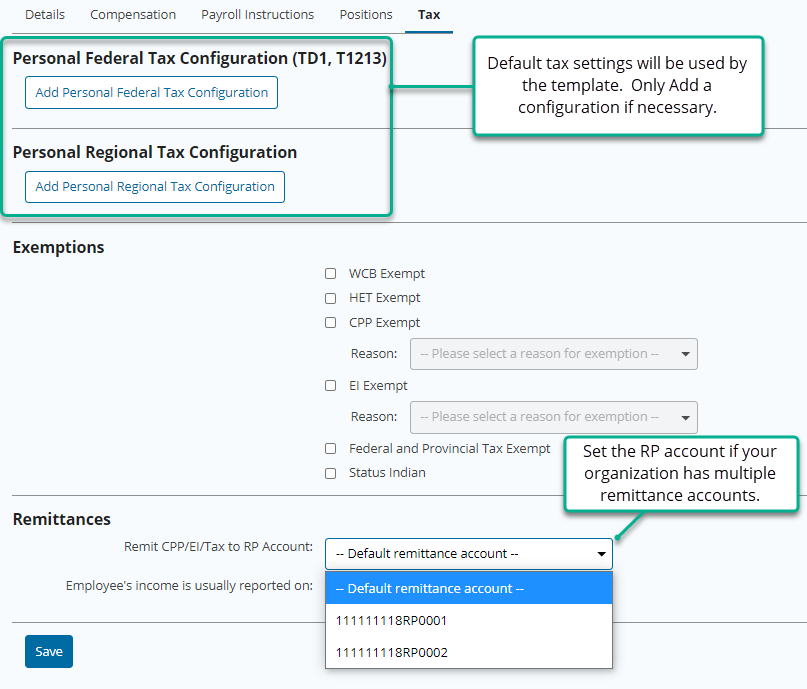
In general the tax section will be left as is to apply the default provincial and federal personal credits, however you can set up a template for example for staff that will not be claiming the personal amounts if they are claiming the exemption with another employer.
The business, RP account, may also be set if you have multiple accounts for example for reduced EI.
Setting a Default Template for a Classification
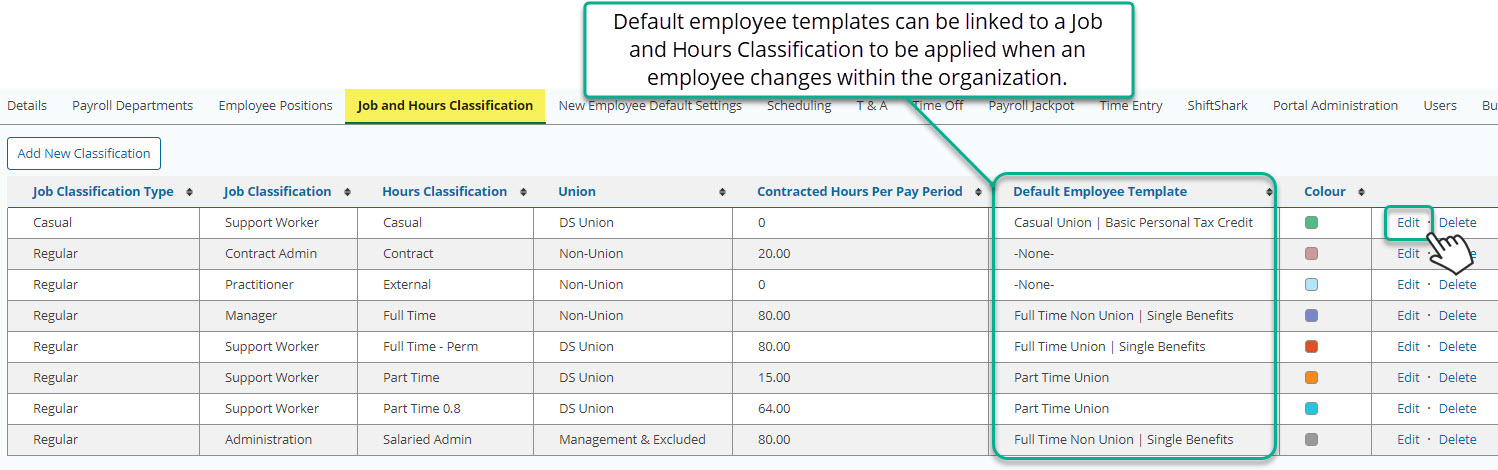
As employees change classification within the organization, based on the classification combination, a default template can be applied to their profile. When being applied to the employee you will have a choice to accept the default or change to another template.
To change the Classification settings you must have access to the Organization Details setup for your organization.
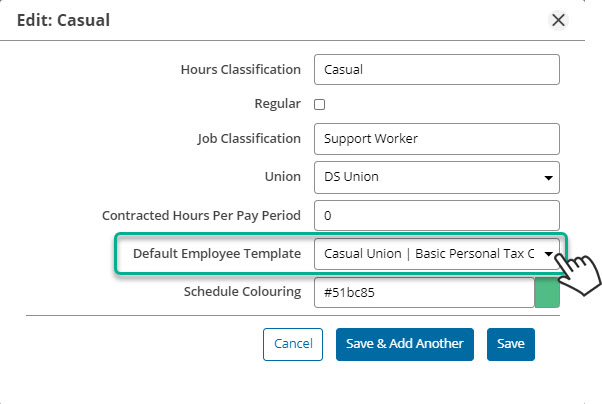
To update a Classification template, choose Edit for the combination and assign the Default Employee Template.
Editing or Deleting a Template
Templates may need to be adjusted to reflect changes in default values, for example a benefit rate change to be applied in future applications. It is important to note that changing a template will not update existing employee records. For existing employees needing a company wide update use the Bulk Update tool to edit payroll instructions.
Templates can only be deleted if they are not set as the default for a Classification, therefore you must edit the Classification settings first as shown in the section above.
