Last modified by: Feyi Adepoju -
HOW TO ENABLE TIME SENSITIVE NOTIFICATION
On Apple
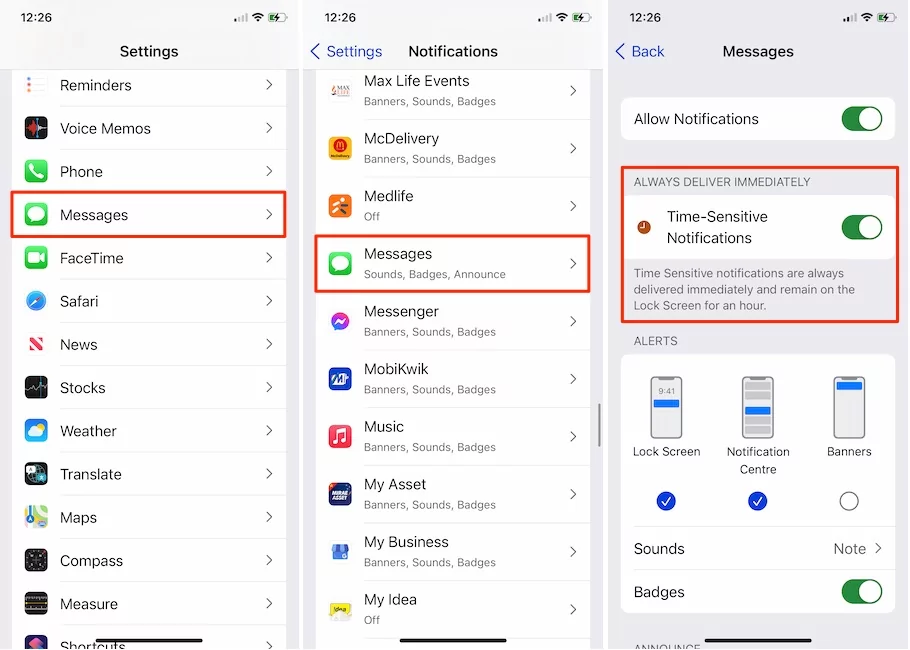
Go to Settings -> Notifications -> Select the App SharkTalk -> Toggle Time Sensitive Notifications to ON.
On Android
Open your device's Settings app. Tap Notifications. Under "Privacy," turn Sensitive notifications on
Key Steps to Enable Critical Notifications:
- Access Notification Settings: Open the Settings app, then tap on Notifications.
- Adjust App Settings: Select App settings to see which apps have permission to send alerts.
- Enable High Priority: Select a specific app and ensure its notifications are toggled ON. For more control, look for specific notification categories (e.g., "Messages" or "Urgent") within that app's settings and set them to "Alerting" or "High Priority".
- Configure Focus Mode: If using "Do Not Disturb," you can allow specific apps to bypass it by adjusting the apps' settings under the Do Not Disturb menu.
- Check Advanced Settings: On some devices, you can adjust the "Time to take action" in the Accessibility menu to ensure notifications stay on screen longer.
Here are a few things Android users can try:
- In the mobile data settings for SharkTalk, make sure that background data is enabled and enable "unrestricted mobile data usage"
- In the battery settings for SharkTalk, make sure that background usage is allowed and try setting it to "unrestricted"
- Disable any battery saver or adaptive battery settings for the phone
On Android
- Open your device's Clock app.
- Tap More. Settings.
- To pick your home time zone: Tap Home time zone.
- To add a clock for home while in another time zone: Turn on Automatic home clock.
- To automatically update the time: Tap Change date and time. Turn Automatic date and time on.
On IOS Turn on Set Automatically in - Settings
- General
- Date & Time. This automatically sets your date and time based on your time zone.
Is this setting dimmed? If a message says that updated time zone information is available, restart your device and any paired Apple Watch. - After downloading the app and logging in, employees need to ensure the notification settings for their device are turned on to avoid missing notifications.
They can do so by following the steps below.
For Android
1. Click the gear icon to open your device Settings.
2. Choose Apps and Notifications.
3. Select Notifications.
4. If you don't immediately see Sharktalk, click on the to show all apps on the device. Sharktalk should be in this list.
5. Ensure that the Notifications are set to On.