Last modified by: The Includables -
How to reassign a shift
This guide is for reassigning an existing shift in your schedules.
If you need to create a shift (insert a new shift into your schedules), see this guide: How to add a new shift
Calling out a shift
To reassign a scheduled shift, click the Reassign a Shift.
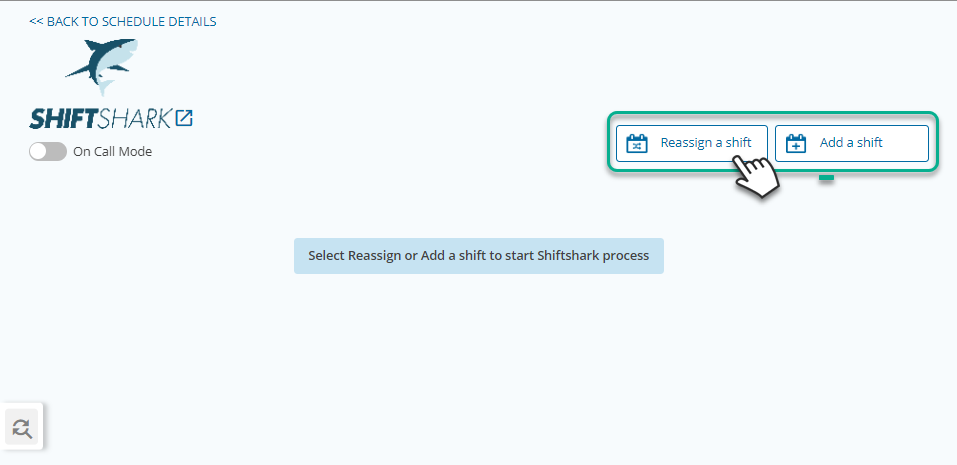
A step indicator tool will appear which will can assist you through the process.
1. Select an employee or vacant.
Choose the team member (or Vacant) who's shift needs to be reassigned by clicking their row.
You can use the Filter by name field to more easily find the shift.

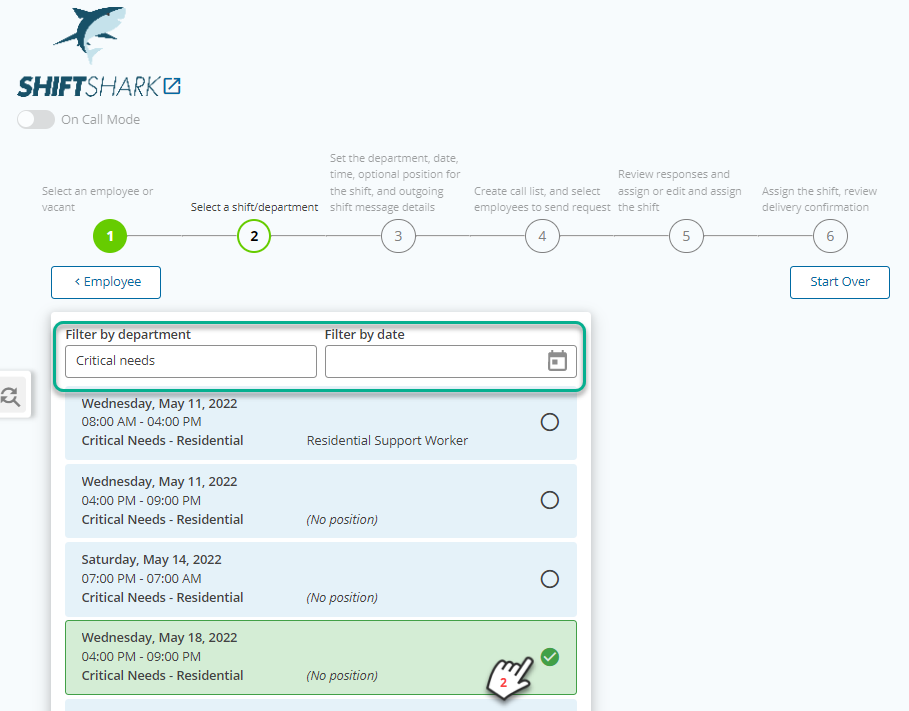
2. Select a shift/department.
All scheduled shifts for the selected employee will now appear.
Select the shift that needs to be reassigned.
Filter boxes are available so you can filter by department or date.
3. Set the department, date, time, optional position for the shift, and outgoing shift message details.
At this time, you can verify the shift details and make any adjustments. You can also add any notes or messages you would like employees to see when the call goes out.

Now that you have found and chosen the shift you need to fill, it's time to build your call list
To the right of the shift details, click Create Call List to initiate the next step.
4. Create call list, and select employees to send request.
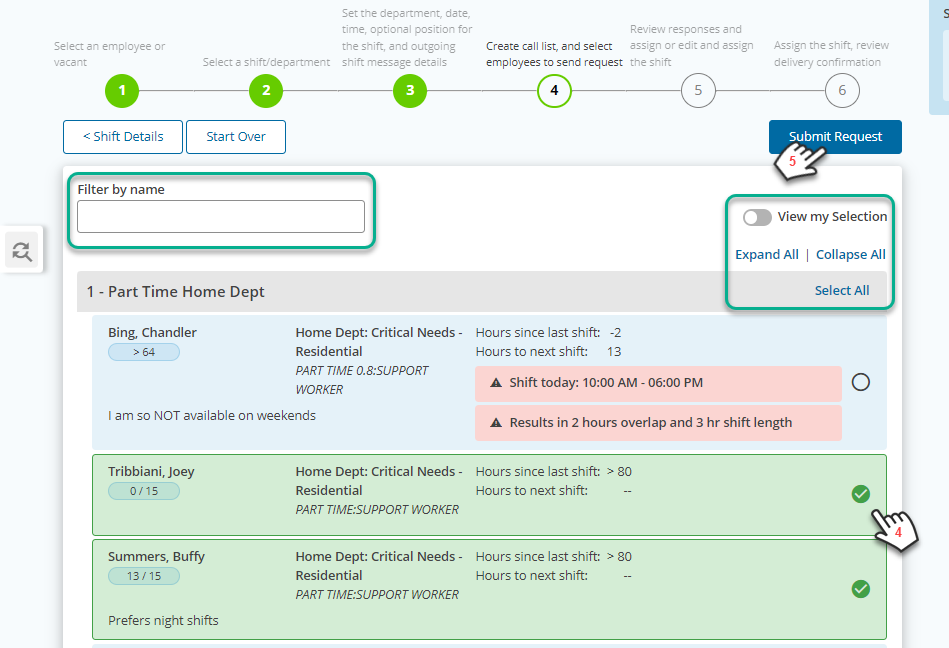
You will see a list of all employees available to work (not scheduled elsewhere in the organization for that shift time) sorted and ordered as per your organization call list setting.
Click the row employees you wish to contact about filling the shift.
Tips:
- Use the Filter by name search field to find a specific employee you wish to send to.
- Use the Select All link on each section header to send the call to all employees in that list.
- Use the Expand All | Collapse All links to open and close each section of your call list (if applicable). You can also click on the section headers to expand and collapse the specific section.
- Use the View my Selection toggle to review your selected employees.
Once you have selected all employees you wish to send the request to, click Submit Request.
Note that once you touch this button you cannot undo the sending of the phone calls or texts offering the shift to your list. You can however cancel the shift.
At this time the call timer will also begin.
Assigning the Shift
5. Review responses and assign or edit and assign the shift.
Now that the call is out, the call timer will begin and you will be taken to the response screen. You can stay on the screen and watch responses come in real time or navigate You do not need to stay on this screen as responses come in.

Once you have your required responses, click on the employee who will be assigned the shift.
Click Assign Shift to assign it as is or Edit & Assign to add or modify any details.
6. Assign the shift, review delivery confirmation.
The final screen will be a delivery confirmation screen that states that the shift has been assigned.
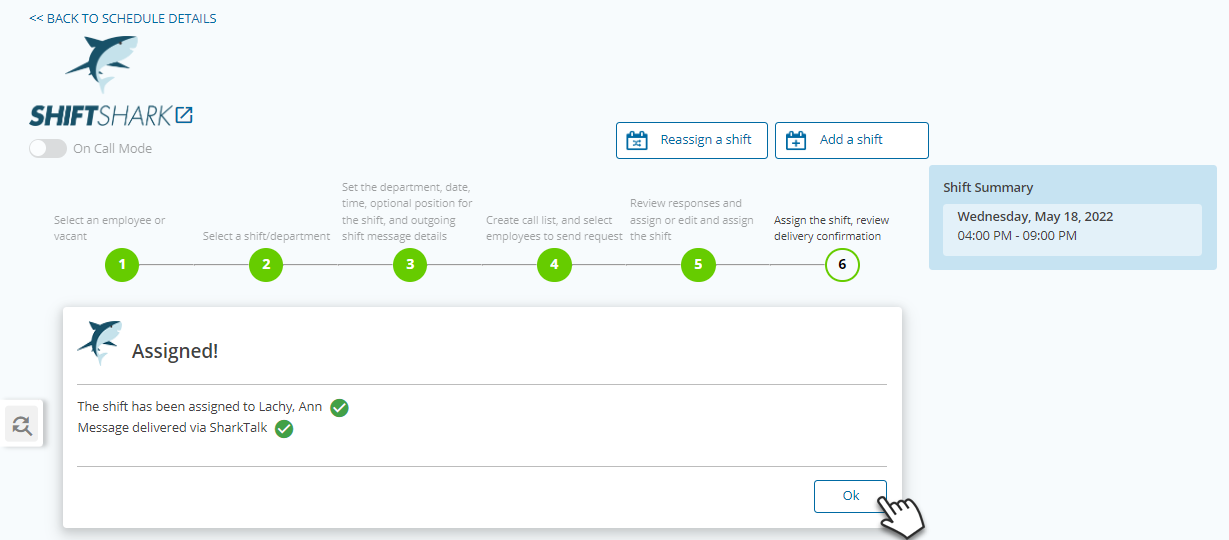
And that's it! You've reassigned a shift.
